
Screenshots pile up faster than anyone names them. A CI run uploads forty of them, a coding agent takes a few more while it debugs a layout, and your own folder is full of Screenshot 2026-11-02 at 10.42.18.png. Then someone asks which one had the error message, or the invoice number, or the setting you changed, and the only way to answer is to open them one by one.
The information is in the pixels. The tools you use to store the files don't read them. So we made reading them a flag: send describe=true with an upload and PixelVault stores the text of the image next to the image, then lets you search it.
Three calls: upload, read, search
You need a PixelVault secret key and a verified email. There is no separate OCR service to sign up for or wire together.
curl -s -X POST https://api.pixelvault.dev/v1/images \
-H "Authorization: Bearer $PIXELVAULT_API_KEY" \
-F file=@add-connector.png -F describe=true
# 2. Ask for the image again a few seconds later.
curl -s https://api.pixelvault.dev/v1/images/img_szar1cxujd4b \
-H "Authorization: Bearer $PIXELVAULT_API_KEY" | jq '.data.description'
# 3. Find images by the words in them.
curl -s -G https://api.pixelvault.dev/v1/images \
-H "Authorization: Bearer $PIXELVAULT_API_KEY" \
--data-urlencode "q=network access"
The description is written in the background, so the upload does not wait for it. The response carries the usual image fields and a description that starts as:
In our production runs it was done after about seven to ten seconds, with the upload included. pixelvault upload --describe --wait and the SDK helpers waitForDescription and wait_for_description poll for you. This is the real description for the first screenshot below (the OCR text is shortened here):
"status": "done",
"alt": "Add custom connector pop-up window with PixelVault URL and instructions.",
"caption": "A pop-up window for adding a custom connector to a system, with a specific URL and instructions.",
"ocr_text": "Add custom connector Connect Claude to your data and tools. Learn more about connectors or get started with pre-built ones. PixelVault Shown in the connectors list. https://mcp.pixelvault.dev/mcp/oauth The HTTPS address where the server accepts MCP requests, for example https://mcp.example.com/mcp. Only use connectors from developers you trust. …",
"model": "@cf/mistralai/mistral-small-3.1-24b-instruct",
"described_at": "2026-11-02T11:16:47.624Z"
}
What it wrote for three real screenshots
These are the screenshots from our Connect PixelVault to Claude guide. We uploaded each one with describe=true and did not edit what came back. The alt text is under each image.
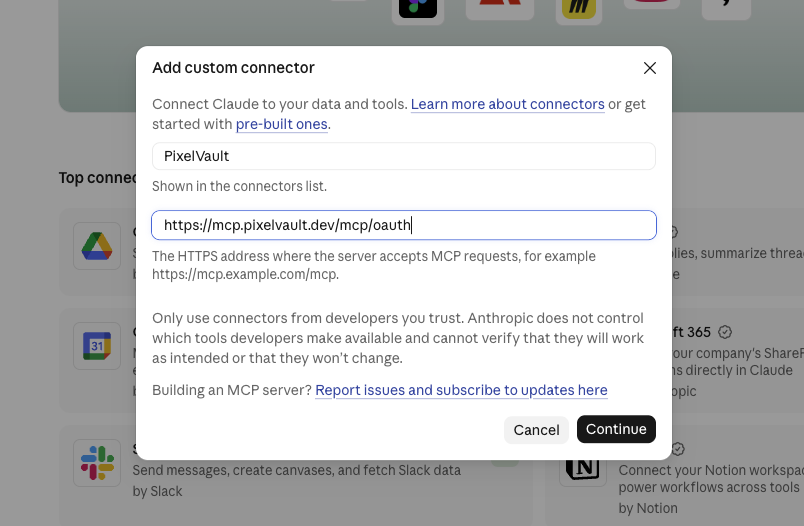
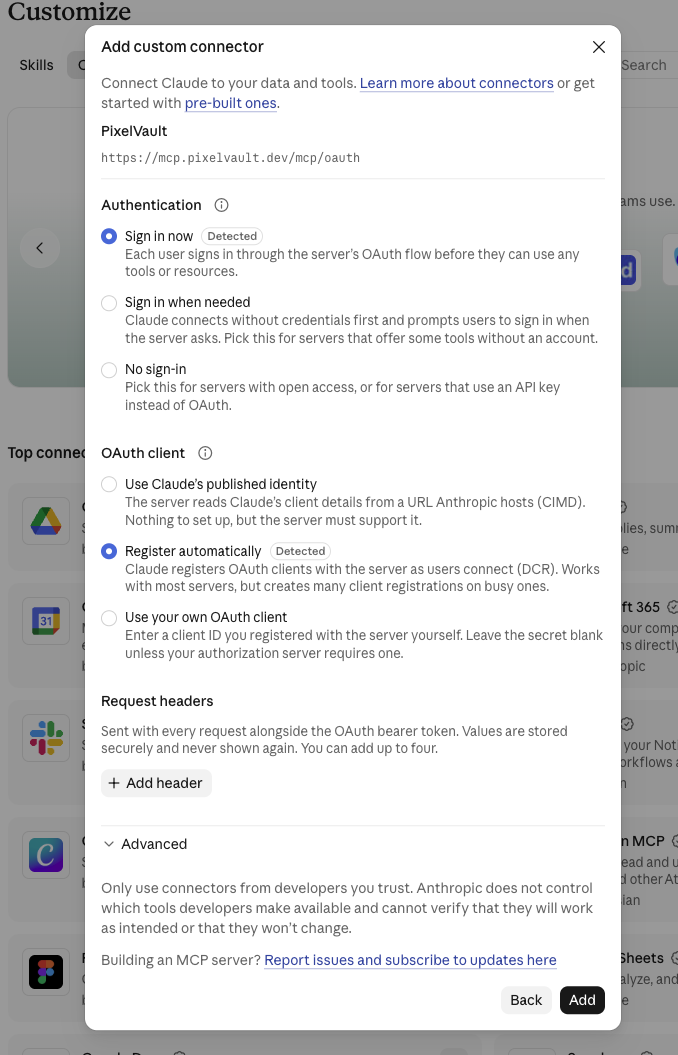
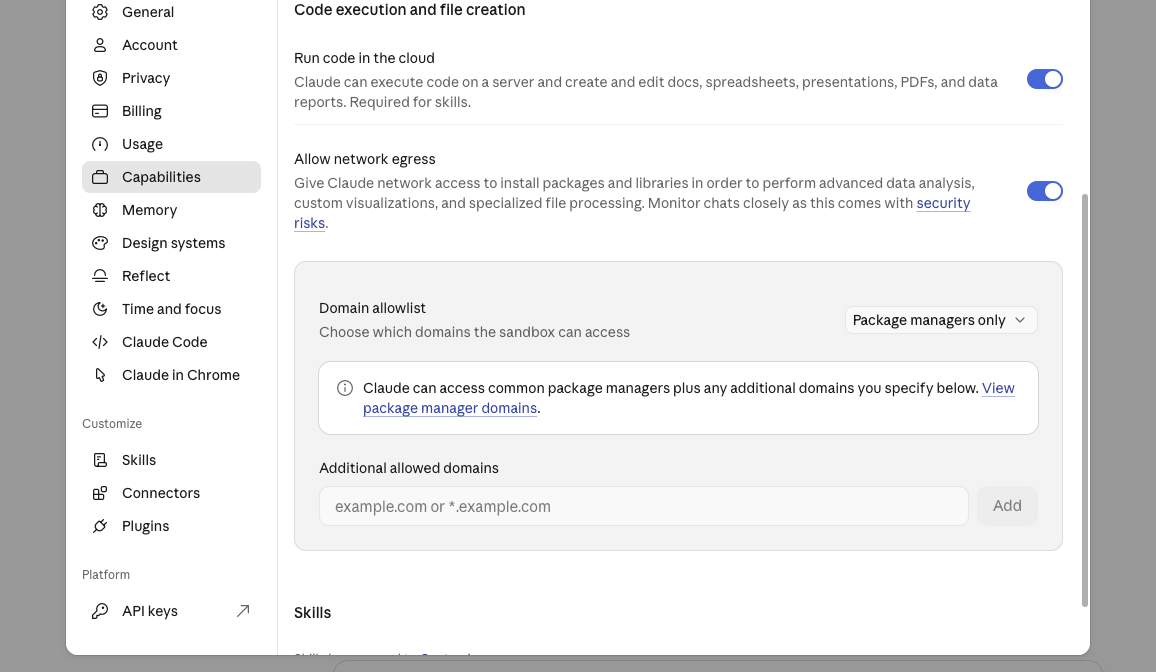
The alt text is accurate and generic, which is what alt text should be. The part that is hard to get any other way is the OCR text: about 700 characters from the first and third screenshots and 1,500 from the second, with the button labels and the URL we typed in.
Search by the words in them
GET /v1/images?q=… searches the alt text, the caption and the OCR text of the images you have described, best match first. We ran these queries against the three images above:
| Query | Found |
|---|---|
network access | network-settings |
oauth | authentication |
"sign in" (a phrase) | authentication |
connector | authentication, add-connector |
custom connector -oauth (excluding a word) | add-connector |
invoice | nothing, correctly |
Words are combined with AND, "quoted phrases" must match together, and -word excludes. A search call took about a third of a second. You can combine q with the metadata filter, so a query like q=error&meta[run]=4821 means “screenshots from CI run 4821 that mention an error”. That is the case we had in mind for agents: tag screenshots with the run when you upload them, then ask for the one with the failure.
From an agent or a workflow
The same two fields are on the MCP server. upload_image takes describe and list_images takes q, so you can ask Claude or another MCP client in plain language:
Upload these screenshots to PixelVault with descriptions, then find the one that shows the network access setting and give me its URL.
The tool text tells the agent to call get_image until the description is done before it searches. The PixelVault skill, the n8n node (Describe With AI and Wait For Description) and both SDKs have it too.
Plans and what it costs
Descriptions are part of your plan, with a quota rather than a per-image price:
| Plan | Descriptions |
|---|---|
| Free | 20 in total |
| Starter | 1,000 a month |
| Pro | 10,000 a month |
- The free 20 do not reset. Paid quotas reset on the first of each month (UTC).
- Searching is not limited by plan. A free account can search the 20 it has.
- If the same image bytes were already described in your project, the new upload reuses that description at no cost.
- A description that errors or comes back unusable gives its unit back. A timeout does not, because the model call has usually still run.
- If a description can't start, the upload still succeeds and the response says why in
describe_skipped:quota,unsupported_type,too_large,busy,email_unverified,secret_key_requiredorunavailable.
What it won't do
- It is keyword search, not meaning. The search matches whole words and does not stem them. We tested it: a screenshot whose text says “tools” is found by
toolsand not bytool. Try both forms when a search comes back empty, and use the alt text and caption words for concepts, because those are what the model wrote. - The text is the model's reading, not ground truth. OCR can miss small or low-contrast text. Test it on your own screenshots before you build on it.
- Treat the output as untrusted. Text inside an image can steer the model, and a screenshot from the internet can say anything. Escape
alt,captionandocr_textbefore you render them in HTML, and never let an agent follow instructions that appear in them. - Formats and size. JPEG, PNG, WebP and GIF up to 4 MB. SVG and AVIF are not described. Over the limit? Shrink the file first with the image compressor.
- It runs on an open model. We use Mistral Small 3.1 on Cloudflare Workers AI, which is released under the Apache 2.0 license.
Try it
The free plan includes 20 descriptions and no card is needed. Create an account, upload a screenshot with describe=true, and search for a word that is in it.