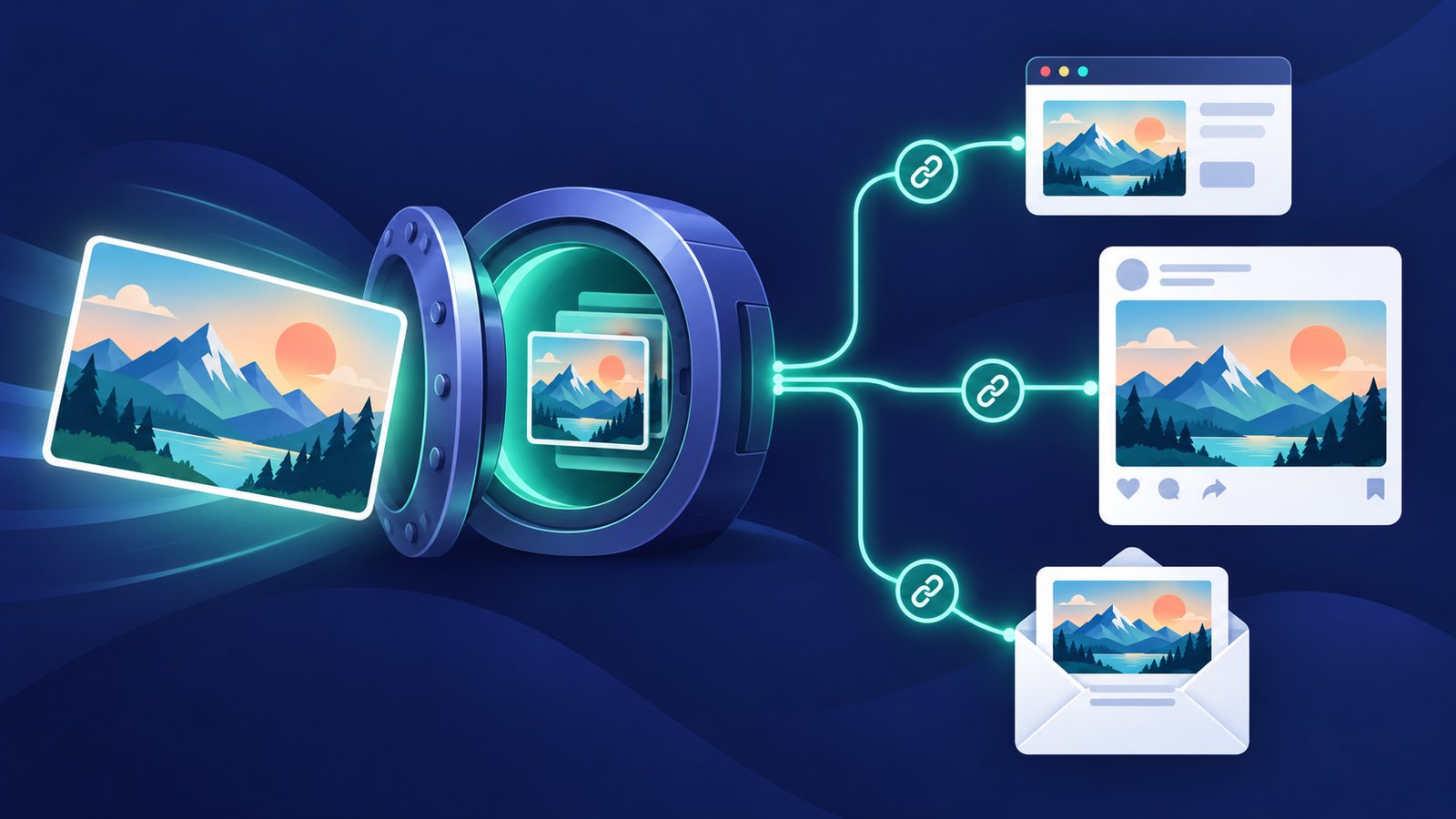
A launch image often has more than one destination. It appears on a landing page, in an email, and in a social post. Keeping the source asset separate from the publishing workflow gives your team one place to reuse it and prepare variants.
This guide shows that handoff using PixelVault and Zernio. It follows their documented API contracts; we have not yet validated the complete integration against a connected Zernio account.
Zernio already handles uploads
Zernio accepts either its own uploads or an existing public HTTPS media URL. Its upload flow is POST /v1/media/presign, a file PUT, then a post referencing the returned publicUrl. The signed upload URL lasts one hour.
Unattached uploads expire after seven days. Creating or updating a post copies the referenced upload into permanent storage, so posts can be scheduled weeks or months ahead. Attach the upload within seven days; the post does not need to publish within that window. See Zernio’s media upload guide.
Zernio documentation checked 23 October 2026. Storage timing above describes Zernio’s own uploads; it does not establish when every external URL is copied.
When a separate image host is useful
For a one-off social post, Zernio’s upload flow may be all you need. PixelVault becomes useful when the asset also belongs to a website, a product catalog, a document, or a future campaign. Store the source URL alongside that content and prepare variants without tying your asset library to an individual post.
Use an authenticated, public PixelVault upload with no expiration setting for ongoing hosting. Anonymous playground links expire within 24 hours, and keyless API uploads expire after 30 days. Those temporary paths are useful for trying the service; this example uses an API key. Keep assets available while downstream workflows need them.
Upload a JPEG and create a draft
Have a PixelVault API key, a Zernio API key, and a connected Instagram Business or Creator account ready. Get the destination account ID from Zernio’s account list. Its quickstart covers connecting accounts and API authentication.
Save a prepared JPEG as campaign.jpg. Set PIXELVAULT_API_KEY, ZERNIO_API_KEY, ZERNIO_ACCOUNT_ID, and ZERNIO_POST_KEY in your environment. Use a UUID for the post key; retain it for retries of that logical post and choose a new one for a different post.
The script uploads to PixelVault, checks the returned image, and creates a Zernio draft. It never sets a publication time. Zernio documents isDraft: true as taking precedence over publishing options, and supports the Idempotency-Key header for post retries. See the create-post reference.
// Save as zernio-draft.mjs. Requires Node.js 22+.
import { readFile } from 'node:fs/promises';

const { PIXELVAULT_API_KEY, ZERNIO_API_KEY,
  ZERNIO_ACCOUNT_ID, ZERNIO_POST_KEY } = process.env;
if (![PIXELVAULT_API_KEY, ZERNIO_API_KEY,
      ZERNIO_ACCOUNT_ID, ZERNIO_POST_KEY].every(Boolean)) {
  throw new Error('Set both API keys, the account ID, and a unique post key.');
}

// Start with a JPEG already cropped for the intended placement.
const bytes = await readFile('./campaign.jpg');
if (bytes.length > 5 * 1024 * 1024) {
  throw new Error('PixelVault uploads must be 5 MB or smaller.');
}
const form = new FormData();
form.append('file', new Blob([bytes], { type: 'image/jpeg' }), 'campaign.jpg');
form.append('folder', 'campaigns');
form.append('visibility', 'public');

const upload = await fetch('https://api.pixelvault.dev/v1/images', {
  method: 'POST',
  headers: { Authorization: 'Bearer ' + PIXELVAULT_API_KEY },
  body: form,
  signal: AbortSignal.timeout(30000),
});
if (!upload.ok) throw new Error('PixelVault upload failed: ' + upload.status);
const uploaded = await upload.json();
const imageUrl = uploaded.data?.url;
if (!imageUrl || new URL(imageUrl).protocol !== 'https:') {
  throw new Error('Upload did not return an HTTPS image URL.');
}

// Verify the actual file is accessible without authentication or redirects.
const media = await fetch(imageUrl, {
  redirect: 'error', signal: AbortSignal.timeout(30000),
});
const mime = media.headers.get('content-type')?.split(';')[0];
await media.body?.cancel();
if (!media.ok || mime !== 'image/jpeg') {
  throw new Error('Expected an accessible JPEG before creating the draft.');
}

const response = await fetch('https://zernio.com/api/v1/posts', {
  method: 'POST',
  headers: {
    Authorization: 'Bearer ' + ZERNIO_API_KEY,
    'Content-Type': 'application/json',
    'Idempotency-Key': ZERNIO_POST_KEY,
  },
  body: JSON.stringify({
    content: 'A first look at our new collection.',
    isDraft: true,
    mediaItems: [{ url: imageUrl, type: 'image' }],
    platforms: [{ platform: 'instagram', accountId: ZERNIO_ACCOUNT_ID }],
  }),
  signal: AbortSignal.timeout(30000),
});
if (!response.ok) throw new Error('Zernio draft failed: ' + response.status);
const result = await response.json();
if (!result.post?._id) throw new Error('Zernio did not return a post ID.');
console.log({ imageUrl, draftId: result.post._id, status: result.post.status });
Run node zernio-draft.mjs. Keep the returned image URL and draft ID. In a production workflow, persist each step so a Zernio retry can reuse the existing upload. The post key protects post creation; it does not deduplicate the PixelVault upload.
Prepare variants before handing off the URL
PixelVault’s transform URLs can produce a square image with ?size=square&fmt=jpg or a portrait with ?size=portrait&fmt=jpg. These presets produce 1080×1080 and 1080×1350 output. Preview the crop so text, faces, and product details remain visible.
Choose the format for the destination: Zernio’s Instagram guide lists JPEG and PNG images. A format accepted by an upload service is not automatically accepted by every social platform.
The example deliberately starts with a prepared JPEG. A URL ending in .png?fmt=jpg can deliver JPEG bytes while retaining a PNG path. We have not tested Zernio’s handling of that combination. Test transformed URLs with the intended platform before relying on them, or download the finished variant and upload it as a correctly named JPEG, then use that new URL.
Using two MCP servers
An agent can call PixelVault to host an image, then pass its URL to Zernio. Zernio’s posts_create tool accepts media_urls and uses is_draft, whereas the REST example uses mediaItems and isDraft. For files on your computer, Zernio also documents a browser upload-link flow. See its MCP tool reference.
Upload my prepared campaign image to PixelVault as a public asset. Verify its URL returns the image. Use that URL to create a Zernio draft for the account I choose, then show me the draft ID for review.
For PixelVault connection options, start with the MCP setup instructions. If an image generator returns temporary media, capture the file before it expires; our generated-image hosting guide covers the storage step.
Check the handoff before scheduling
- Fetch the image from outside your app, without cookies or authorization. It should return image bytes rather than an HTML page.
- Confirm the file format, dimensions, crop, and size suit the destination. PixelVault’s upload limit is 5 MB.
- Open the Zernio draft and inspect the attached image and selected account. Draft creation alone does not prove publication will succeed.
- After reviewing the draft, schedule through Zernio and check the final post status. Use a future timestamp and an explicit timezone; its API treats a past schedule time as an immediate publication request.
The scheduling behavior is documented in Zernio’s create-post reference. We recommend checking the resulting platform post as part of your first integration test.
The useful separation is simple: keep the reusable image in your asset library, and let the publishing service manage where and when it appears. Start with the PixelVault API quickstart, or explore the related Buffer carousel guide.